I had a few free hours recently and decided to have a go at a long-simmering idea: To improve how I manage multiple email accounts. As someone who struggles mightily to cope with distractions (I have the attention span of a gnat), I was hoping to consolidate several separate interfaces into one, simpler, less distracting, more focused client.
Sadly, I wasn’t quite successful – my work emails remain out of reach. But I learned a lot and ended up in at least a better place.
There are already many guides on the Internet around what I’ve done here, but all of the information I needed was a bit scattered, especially around using OAuth 2.0. I thought it was worth writing up for posterity, even if just for me.
Why?
I manage my schedule, notes and to-dos in Emacs, via Org Mode and Org Roam. I get some ribbing from (much younger) VS Code-using colleagues for that – using Emacs in 2025 is a bit like wearing a bow tie – but I’ve whittled and shaped Emacs into a sharp, well-honed tool over the last 30 years or so. It fits my brain nicely. Having my email directly available – instead of jumping to a completely different interface or, worse, the Distracto Land™ of the browser – when I’m organising things or taking notes just makes sense for me.
I also wanted this to specifically work offline. I’m writing this right now on the train from London to Manchester and, despite the spotty-at-best connection, I have access to all my emails.
Why Mu4e? There are other email clients for Emacs, including Gnus, which is built-in, and multiple back ends and indexers like Notmuch. I settled on Mu4e (a combination of an indexer call mu and an Emacs package), because I liked its nicely compact and customisable interface, where I can easily set up quick (two character) shortcuts to my most common email searches.
However, most of what I’m going to go through here would be applicable to many other offline email clients (Emacs or not), so you might find it useful, even if you don’t agree with me on Mu4e.
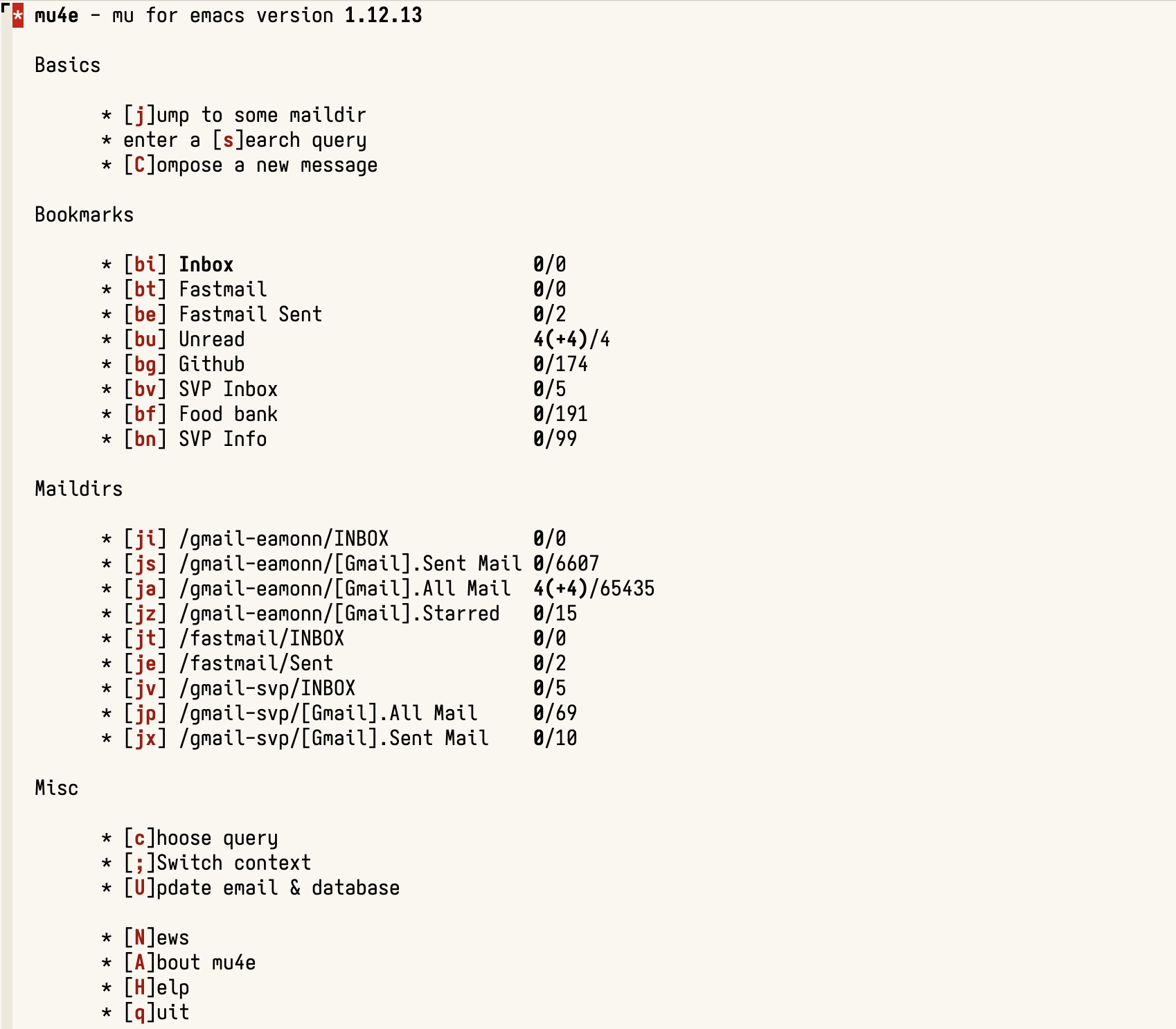
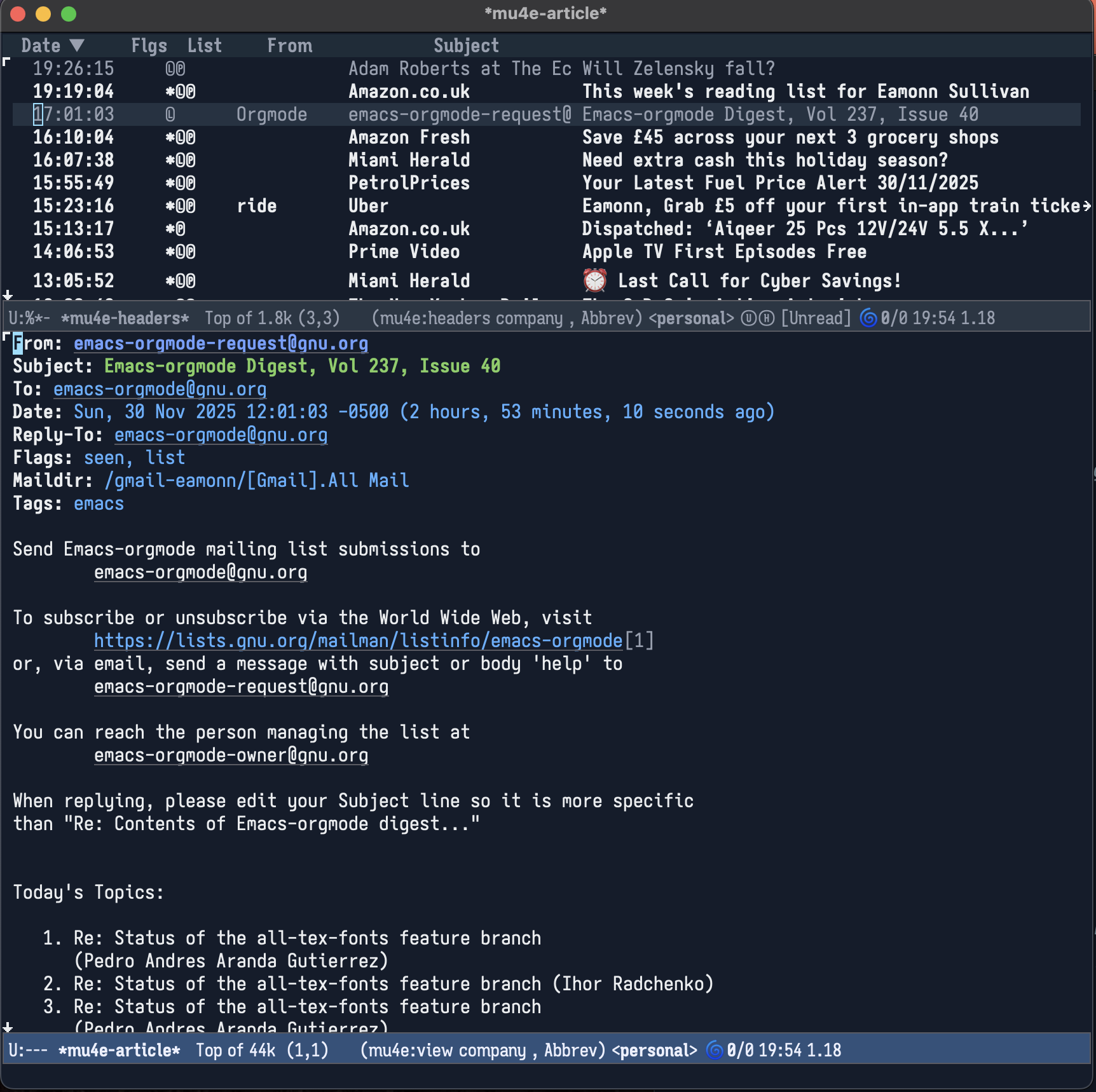
Gathering the Emails
I started this whole process with my personal Gmail account, and then moved on to the emails I help manage as a volunteer for a local charity (a chapter of the Saint Vincent de Paul society). I mostly work in its food bank, but I also act as an unofficial IT guy and provide a couple of client-facing emails (info@ and foodbank@), which are currently implemented with Amazon’s Simple Email Service and proxied through another Gmail account.
I’m considering another email provider, Fastmail, for managing those charity emails. I’m currently in the 30-day free trial, so I threw in that one as well.
For all of the emails, I’ll use the Internet Message Access Protocol (IMAP) to download the messages and save them locally in a standard format called Maildir for searching and viewing.
There are a couple of options for doing this. I tried mbsync first, but ran into issues with Gmail (the downloads kept stopping early with an error). OfflineIMAP was slower, but worked better for me.
On the Mac, you can install OfflineIMAP via brew: brew install offlineimap. On Linux, you can also use brew, but probably best to use something like pipx.
Setting up OAuth 2.0 for Google
OfflineIMAP needs to know how to log in to your provider and retrieve the emails. OfflineIMAP’s deep integration with Python (which you can call directly from the configuration file) and packages such as keyring and google-auth make this almost straightforward. (I’ll mention some issues later). It allows me to keep any login details out of my config files and just call functions to retrieve them at runtime, which is better for security.
Most of the guides on the Web steer you toward “app passwords”, which was the previous way of securely providing access to your Gmail account from third party tools. Fastmail, as we’ll see, still uses these. Google, however, has deprecated them. They seemed to work at first, but they fail (get rejected) fairly randomly. I’m just guessing, but I think this is Google’s way of gently nudging us on to more modern authentication.
I put most of the code I wrote for this step in a separate repo – eamonnsullivan/oauth2-tools. The code is very heavily inspired by Kuibin Lin’s blog post for setting up a Raspberry Pi to use Gmail as a relay (which I also needed to do). The main changes I did was to use uv for the package manager and some refactoring to handle multiple gmail accounts.
But, first, I needed to create an OAuth client in Google Cloud:
- Go to Google’s cloud console, and create a new project.
- Navigate to API & Services, then to OAuth consent screen, click Get Started.
- Fill out the form. The important bit is to choose ‘External’ for User Type
- Create a new OAuth client (API & Services -> Credentials -> Create Credentials -> OAuth client ID).
- For Application Type choose ‘Desktop App.’
- When created, download the client secret (JSON) file.
I needed to do this for both Gmail accounts.
Using that file, run the authorise.py script to create a credentials.json file for each account. The next couple of scripts, get_token.py and get_auth_creds.py just use that credentials.json file to get the fields I’ll need, updating any expired token automatically. I’ve put these in my local bin directory (~/bin/).
It’s important to protect these JSON files like passwords, so at a bare minimum, make sure only you have access to the file:
chmod 0600 *.json
If they are lost, stolen or you accidentally check them into Github (don’t laugh), you can disable the client in the Google Cloud console and create a new one.
Creating an app password for Fastmail
Fastmail still uses app passwords. They also provide OAuth2, but you need to contact them to become a “partner” or something or other (at the time of writing). I’ll just use the app password during my free trial period.
In Fastmail’s security settings, click on “Manage app passwords and access” to create a new one. I then saved it to Keychain on my Mac.
security add-generic-password -s offlineimap -a me@mydomain.com -w
Or, on Linux, something like:
secret-tool store --label="offlineimap" password value
In both cases, I was prompted to enter the password.
Once it’s stored in the local secrets system, I can retrieve the passwords with a script. I use something like this, using uv’s support for standalone scripts, and saved in my local ~/bin directory:
#!/usr/bin/env -S uv run --script
# /// script
# requires-python = ">=3.14"
# dependencies = [
#     "keyring",
# ]
# ///

import keyring

def get_password_from_keychain(account: str) -> str:
    """
    Retrieve the password for the given account from the macOS Keychain or Gnome Keyring.

    Args:
        account (str): The name of the account for which to retrieve the password.

    Returns:
        str: The retrieved password.
    """
    return keyring.get_password("offlineimap", account)
My offlineimap_helper.py
I put my OfflineIMAP Python “helper” code in ~/bin/offlineimap_helper.py. One issue I ran into is that OfflineIMAP can’t seem to handle any dependencies outside of the standard library. If I tried to use the function above in my helper library, I’d get an error:
ERROR: No module named 'keyring'
To be honest, that could be because I’m a very rusty Python programmer and I’m missing some trick with virtual environments or something, but I couldn’t figure it out. Instead, my ~/bin/offlineimap_helper.py file actually runs these scripts and gets the values it needs from standard out. I did it this way, rather than just opening the credentials file directly (it’s just JSON) because I want to keep a layer of abstraction in place, for when I (probably) add other OAuth providers. That’s probably overthinking it!
import os
from subprocess import check_output

def get_password_from_keychain(account: str) -> str:
    """
    Retrieve the password for the given account from macOS Keychain.
    """
    return check_output(
        [
            "security",
            "find-generic-password",
            "-s",
            "offlineimap",
            "-a", account,
            "-w"],
        env=os.environ
    ).strip()

def get_client_id(credentials: str) -> str:
    """
    Retrieve the OAuth2 client id for the given credentials file.
    """
    return check_output(
        [
            "get_auth_creds",
            credentials,
            "client_id"
        ],
        encoding="utf-8",
        env=os.environ
    ).strip()

def get_client_secret(credentials: str) -> str:
    """Retrieve the OAuth2 client secret from the given credentials.
    """
    return check_output(
        [
            "get_auth_creds",
            credentials,
            "client_secret"
        ],
        encoding="utf-8",
        env=os.environ
    ).strip()

def get_refresh_token(credentials: str) -> str:
    """
    Retrieve the OAuth2 refresh token from the given credentials.
    """
    return check_output(
        [
            "get_auth_creds",
            credentials,
            "refresh_token"
        ],
        encoding="utf-8",
        env=os.environ
    ).strip()
Saving the emails
We now have all the tools we need to retrieve the emails with OfflineIMAP.
I created the directories where I wanted my two Gmail accounts and one Fastmail account to go to.
mkdir -p ~/.maildir/gmail1 ~/.maildir/gmail2 ~/.maildir/fastmail
OfflineIMAP also needs to be pointed toward the root certificates to use secure connections. I found it easier to just copy the root certificates to a file in .maildir. I followed this guide to export them from Keychain on MacOS and save them as a pem file in ~/.maildir/certificates.
My current configuration for OfflineIMAP (which I put in ~/.offlineimaprc) looks something like this (I’ve anonymised it), for the three accounts:
[general]
accounts = Gmail1,Gmail2,Fastmail
# The implementation code for get_client_id,
# get_client_secret,
# get_password_from_keychain and
# get_refresh_token used below.
pythonfile = ~/bin/offlineimap_helper.py

[Account Gmail1]
localrepository = Local1
remoterepository = Remote1
synclabels = yes

[Repository Local1]
type = GmailMaildir
localfolders = ~/.maildir/gmail1/

[Repository Remote1]
type = Gmail
auth_mechanisms = XOAUTH2
oauth2_client_id_eval = get_client_id("/path/to/gmail1/credentials.json")
oauth2_client_secret_eval = get_client_secret("/path/to/gmail1/credentials.json")
oauth2_request_url = https://oauth2.googleapis.com/token
oauth2_refresh_token_eval = get_refresh_token("/path/to/gmail1/credentials.json")
remotehost = imap.gmail.com
remoteuser = user.name1@gmail.com
ssl = yes
sslcacertfile = ~/.maildir/certificates/root-certificates.pem

[Account Gmail2]
localrepository = Local2
remoterepository = Remote2
synclabels = yes
# I don't need every email for this one, just the last couple of months
maxage = 60

[Repository Local2]
type = GmailMaildir
localfolders = ~/.maildir/gmail2/

[Repository Remote2]
type = Gmail
auth_mechanisms = XOAUTH2
oauth2_client_id_eval = get_client_id("/path/to/gmail2/credentials.json")
oauth2_client_secret_eval = get_client_secret("/path/to/gmail2/credentials.json")
oauth2_request_url = https://oauth2.googleapis.com/token
oauth2_refresh_token_eval = get_refresh_token("/path/to/gmail2/credentials.json")
remotehost = imap.gmail.com
remoteuser = user.name2@gmail.com
ssl = yes
sslcacertfile = ~/.maildir/certificates/root-certificates.pem

[Account Fastmail]
localrepository = LocalFastmail
remoterepository = RemoteFastmail
synclabels = yes

[Repository LocalFastmail]
type = Maildir
localfolders = ~/.maildir/fastmail/

[Repository RemoteFastmail]
type = IMAP
# I'm not sure which auth mechanism Fastmail is using,
# so here are some options. It'll try each until
# one works.
auth_mechanisms = CRAM-MD5, PLAIN, LOGIN
remotehost = imap.fastmail.com
remoteport = 993
remoteuser = me@mydomain.com
remotepasseval = get_password_from_keychain("me@mydomain.com")
ssl = yes
sslcacertfile = ~/.maildir/certificates/root-certificates.pem
I then just ran offlineimap to start downloading my email. For my primary personal Gmail account, this took days (many, many gigabytes of emails dating back to 2004), but for my secondary one (where I’m only downloading a couple of months) and new Fastmail account, it was quick.
Sending email
To send, most providers (usually) provide an SMTP service for this. I’m using msmtp, which is among the simplest mail transport agents to set up.
On the mac, you can brew install msmtp. On Linux, it’s usually available in the standard repositories. On Debian-flavoured distributions (e.g., Ubuntu) run this:
sudo apt-get install msmtp msmtp-mta
Again, we don’t want any plain text credentials in the config, so we’ll use the scripts to either retrieve a valid OAuth token or the app password. This is my ~/.msmtprc (anonymised):
defaults
logfile ~/.maildir/msmtp.log
tls_trust_file ~/.maildir/certificates/root-certificates.pem

account gmail1
auth oauthbearer
host smtp.gmail.com
port 587
protocol smtp
from user.name1@gmail.com
user user.name1@gmail.com
passwordeval "get_token.py -c /path/to/gmail1/credentials.json"
tls on
tls_starttls on

account gmail2
auth oauthbearer
host smtp.gmail.com
port 587
protocol smtp
from user.name2@gmail.com
user user.name2@gmail.com
passwordeval "get_token.py -c /path/to/gmail2/credentials.json"
tls on
tls_starttls on

account fastmail
auth on
host smtp.fastmail.com
port 465
protocol smtp
from me@mydomain.com
user me@mydomain.com
passwordeval "security find-generic-password -s offlineimap -a me@mydomain.com -w"
tls on
# This needs to be off for Fastmail, for some reason
tls_starttls off

account default : gmail1
The get_token.py script returns the actual login token directly and refreshes it automatically if the token has expired.
Setting up Mu4e
The final piece of the puzzle is to use mu to index all the messages and set up Mu4e to search that index and send email. The creator of Mu4e has written some excellent documentation and you can see my complete Emacs config of Mu4e in Github, so I’ll just call out a few bits.
To install mu, I used brew install mu on the Mac. I use straight.el to manage my Emacs configuration, so this got a little complicated (Mu4e needs some special tools to compile), but I could use the brew installed version of Mu4e directly:
(use-package mu4e
  :straight
  (:local-repo "/opt/homebrew/share/emacs/site-lisp/mu/mu4e"
               :type built-in)
  [...]
Once I downloaded my email, I needed to initialise the index. I did something like this:
mu init --personal-address user.name1@gmail.com \
        --personal-address user.name2@gmail.com \
        --personal-address me@mydomain.com \
        --maildir ~/.maildir
For a complete example, take a look at my config. I have three different “contexts” for the different accounts, each with their own settings. I’ve also started (barely) customising the experiencing, adding my own actions. This is one that saves a link to the current message and creates a node in Org Roam:
(defun eds/get-org-directory ()
  "The location of my org directory varies by computer."
  (file-truename "~/Dropbox/org"))

(defun eds/strip-invalid-chars (title)
  "Strip characters that don't work in filenames or github branches"
  (replace-regexp-in-string "[\\?\\>\\<\\|\\:\\&]" "" title))

(defun eds/process-title (title)
  "Downcase and hyphenate a title case string. Remove characters
that don't work in a filename."
  (eds/strip-invalid-chars (mapconcat 'identity (split-string (downcase title)) "-")))

(defun eds/orgify-msg (msg)
  "Create a new org-roam node from an email message."
  (let* ((link (org-store-link msg nil))
         (subject (mu4e-message-field msg :subject))
         (time-string (format-time-string "%Y%m%dT%H%M%S"))
         (clean-subject (eds/strip-invalid-chars subject))
         (extension "org")
         (slug (eds/process-title clean-subject))
         (file-base-name (concat time-string "-" slug "." extension))
         (org-roam-directory (eds/get-org-directory))
         (file-name (expand-file-name file-base-name org-roam-directory))
         (title-line (format "#+title: %s\n" subject))
         (startup-line "#+startup: content\n")
         (first-heading (format "* %s\n" link)))
    (find-file file-name)
    (insert (concat title-line startup-line first-heading))
    (org-id-get-create)
    (end-of-buffer)
    (save-buffer)
    (org-roam-db-sync)))

(add-to-list 'mu4e-view-actions
               '("Org" . eds/orgify-msg) t)

Tripped up at the last hurdle
Alas, the email I really struggle with is for work. My personal and charity emails are important, but low volume. My work emails are important and high volume. We use Outlook and Microsoft 365, which do provide hooks I need, but my employer has disabled IMAP, SMTP and support for most third-party clients (except Apple Mail and I think whatever the equivalent is on Android). I can’t, for example, create the client id and secret I need to use OAuth 2. My employer has done this for undoubtedly good security reason (smaller surface area to worry about, for example), but it’s not great for me.
Still, I’ve learned quite a bit, and I’ve brought at least my personal and charity emails into the Org system. I can create a link to an email and make a to-do item out of it in a couple of keystrokes. That’s progress, and worth doing.